Giving OpenCode Eyes: Extending Terminal AI Agents With Browser Tools
Table of Contents
Terminal-first AI agents are remarkably capable when operating in their comfort zone: refactoring functions, editing configuration files, running shell commands, and grepping through logs. When you give an agent like OpenCode access to your repository, it handles codebase navigation with uncanny speed.
But until recently, terminal agents suffered from a glaring structural blindness: they couldn’t see what they were building on the web.
If an agent modified an Astro component, tweaked a CSS layout, or wired up a complex API request on the client side, its awareness ended at the terminal boundary. It relied on you, the developer, to open the browser, click around, check if the UI broke, and report back. The agent was driving blind, and you were acting as its visual sensor.
Plugging opencode-browser-tools into OpenCode completely changes that equation.
The Terminal Blindspot
In a previous post on setting up an AI coding sandbox, I walked through running OpenCode as an autonomous remote agent. That setup worked brilliantly for backend logic, script writing, and refactoring tasks.
However, web development is fundamentally visual and interactive. A green terminal checkmark from a build script like npm run build only tells you that the TypeScript compiler didn’t throw a syntax error. It tells you nothing about whether:
- A CSS backdrop filter rendered as a solid black box on mobile viewports.
- A button modal locked background scrolling or lost focus trap management.
- An API response correctly updated client-side state without triggering an infinite re-render.
- A dynamic input field retained cursor position during auto-save events.
When debugging is the unsolved problem in AI tooling, making the agent relay plain-text descriptions of visual glitches back and forth is exhausting. What the agent needs is a way to spawn a browser session, inspect the DOM, trigger events, and inspect the rendered result directly.
Enter opencode-browser-tools
opencode-browser-tools is an OpenCode plugin designed to bridge this exact gap. By integrating directly into OpenCode’s plugin lifecycle and leveraging the Model Context Protocol (MCP), it grants OpenCode agents programmatic, real-time control over headful or headless browser sessions.
Instead of writing custom Playwright boilerplate scripts for every test, the plugin registers high-level browser interaction primitives into the agent’s tool registry:
- Navigation & Session Management:
browser_open, maintaining multi-tab dev sessions, handling authentication cookies, and preserving local storage. - DOM Inspection & Querying:
browser_snapshot(accessibility tree with@e1/@e2refs), reading calculated styles, and evaluating live state. - User Interactions:
browser_click,browser_type,browser_fill, dispatching keypresses (browser_press), and element hovers (browser_hover). - Visual Snapshotting:
browser_screenshotto capture high-fidelity screenshots attached directly into the agent’s visual context. - Audit & Console:
browser_a11y(axe-core accessibility audits),browser_console, andbrowser_errorsfor capturing uncaught JS exceptions.
Wiring It Up: The opencode.json Configuration
Integrating browser capabilities into an OpenCode project doesn’t require complex boilerplate. It’s declared directly in the project’s root opencode.json configuration file:
{
  "$schema": "https://opencode.ai/config.json",
  "default_agent": "caveman",
  "plugin": [
    [
      "opencode-browser-tools",
      {
        "autoInstall": true,
        "enableMcp": true,
        "mcpTools": "core",
        "defaultSession": "dev"
      }
    ]
  ]
}
Let’s break down what each of these key parameters enables:
"autoInstall": true: Automatically resolves and provisions the underlying browser driver dependencies in headless mode when an agent session begins, avoiding manual setup steps."enableMcp": true: Exposes the browser interactions via Model Context Protocol (MCP) endpoints, making them natively discoverable to OpenCode’s internal tool router."mcpTools": "core": Restricts the exposed toolset to essential browser primitives, preventing prompt bloat while keeping the agent focused on core web actions."defaultSession": "dev": Binds browser actions to a persistent local development session, ensuring hot-module reloading (HMR) state and cookies persist across multiple agent turns.
What It Actually Feels Like in Practice
Once opencode-browser-tools is active, the agent loop shifts from speculate-and-ask to execute-and-verify.
Consider a real scenario: adding a dark-mode toggle or tweaking a floating navigation bar in an Astro application.
Without browser tools, the workflow looked like this:
- Agent edits CSS and Astro templates.
- Agent tells user: “I’ve updated the component. Please check if the header aligns properly on mobile.”
- User switches windows, resizes browser, opens developer tools, sees header overflowing, and types out a text description of the bug.
- Agent guesses what caused the overflow and edits CSS again.
With opencode-browser-tools, the loop closes autonomously inside the agent:
- Agent updates the CSS stylesheet.
- OpenCode invokes browser navigation to
http://localhost:4321. - The agent resizes the viewport to mobile dimensions (
375x812), takes a screenshot, and queries the computed width of#nav-container. - The agent notices that
#nav-containerhaswidth: 420pxcausing horizontal scroll, appliesmax-width: 100%, re-verifies in the browser, and confirms the fix before concluding its turn.
As discussed in SDLC That Loops Back, closing the feedback loop is what separates automated error generation from true autonomous software engineering.
Seeing the Agent in Action
Here is what a live validation pass looks like inside an OpenCode terminal session when the agent is asked to validate local blog routing:
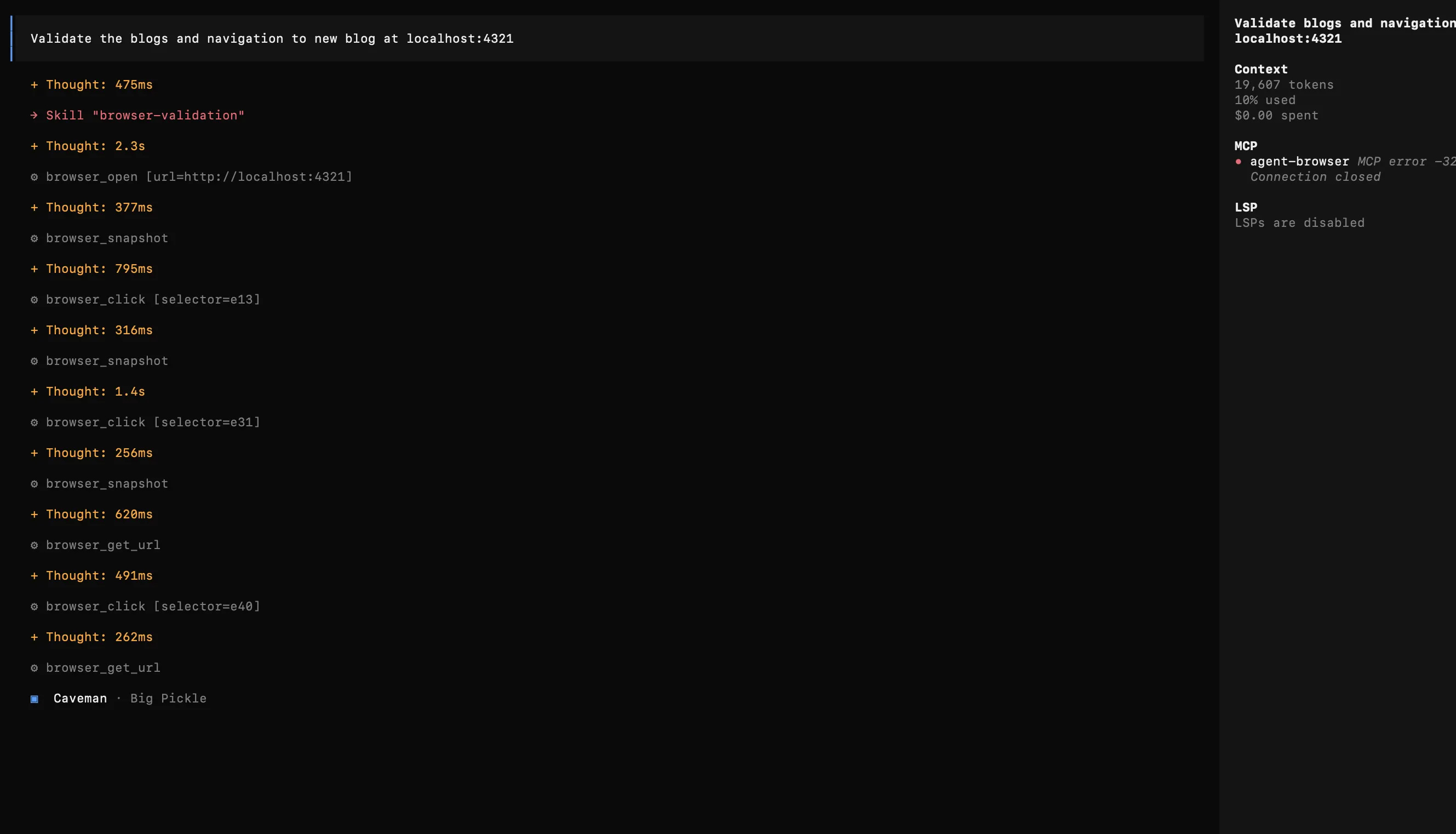
OpenCode initiating a browser session, opening localhost:4321, snapshotting the accessibility tree, and navigating elements by ref.
As the agent progresses, it doesn’t just click links. It inspects computed HTML, checks JavaScript console logs, verifies state across tag filters, and executes custom browser assertions:
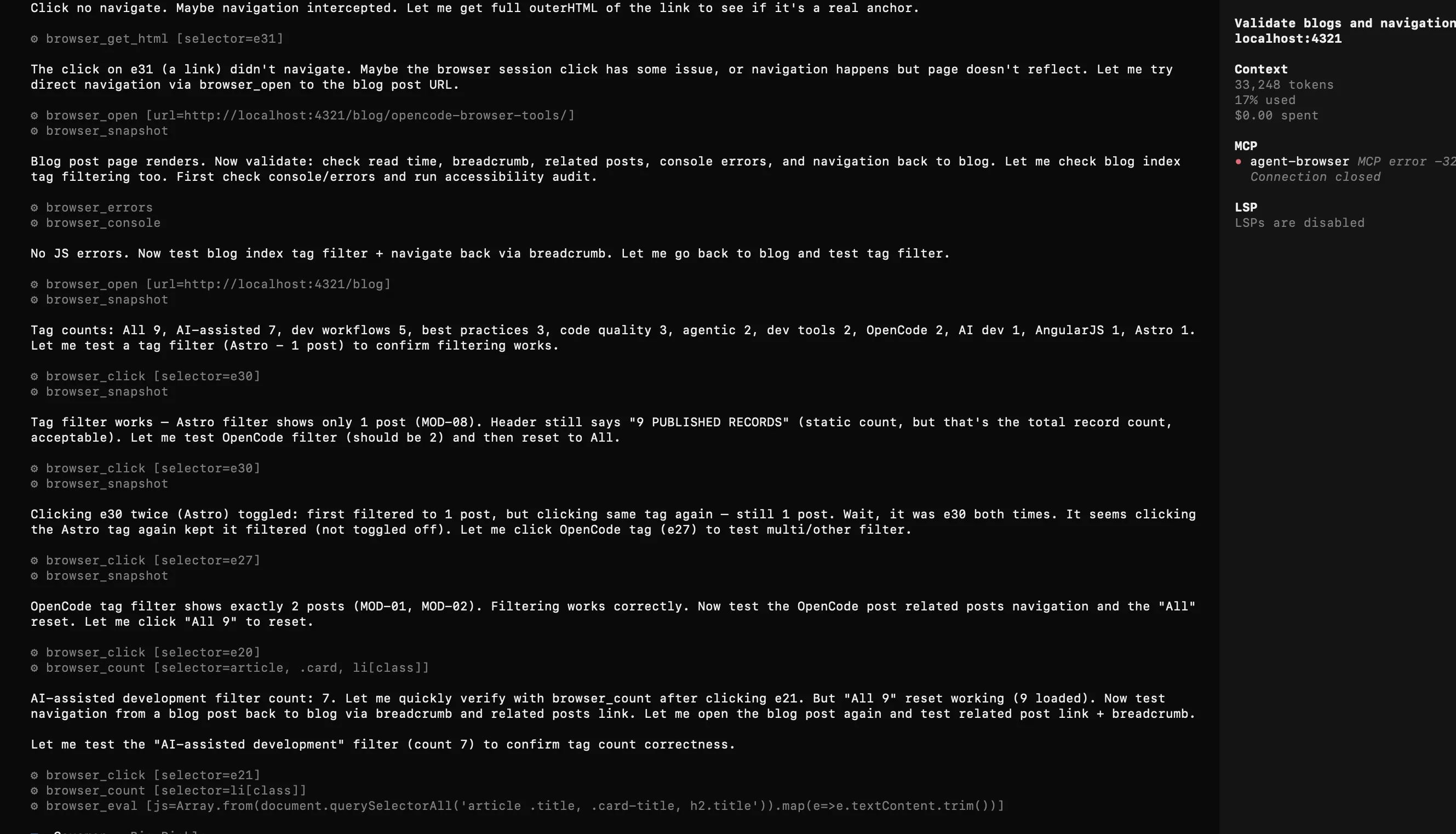
The agent checking browser_errors and browser_console for uncaught JS exceptions, verifying tag filters, and running browser_eval assertions.
Once the full suite of pages, links, and layout viewports has been checked, OpenCode summarizes its findings into a structured report and cleans up the browser session:
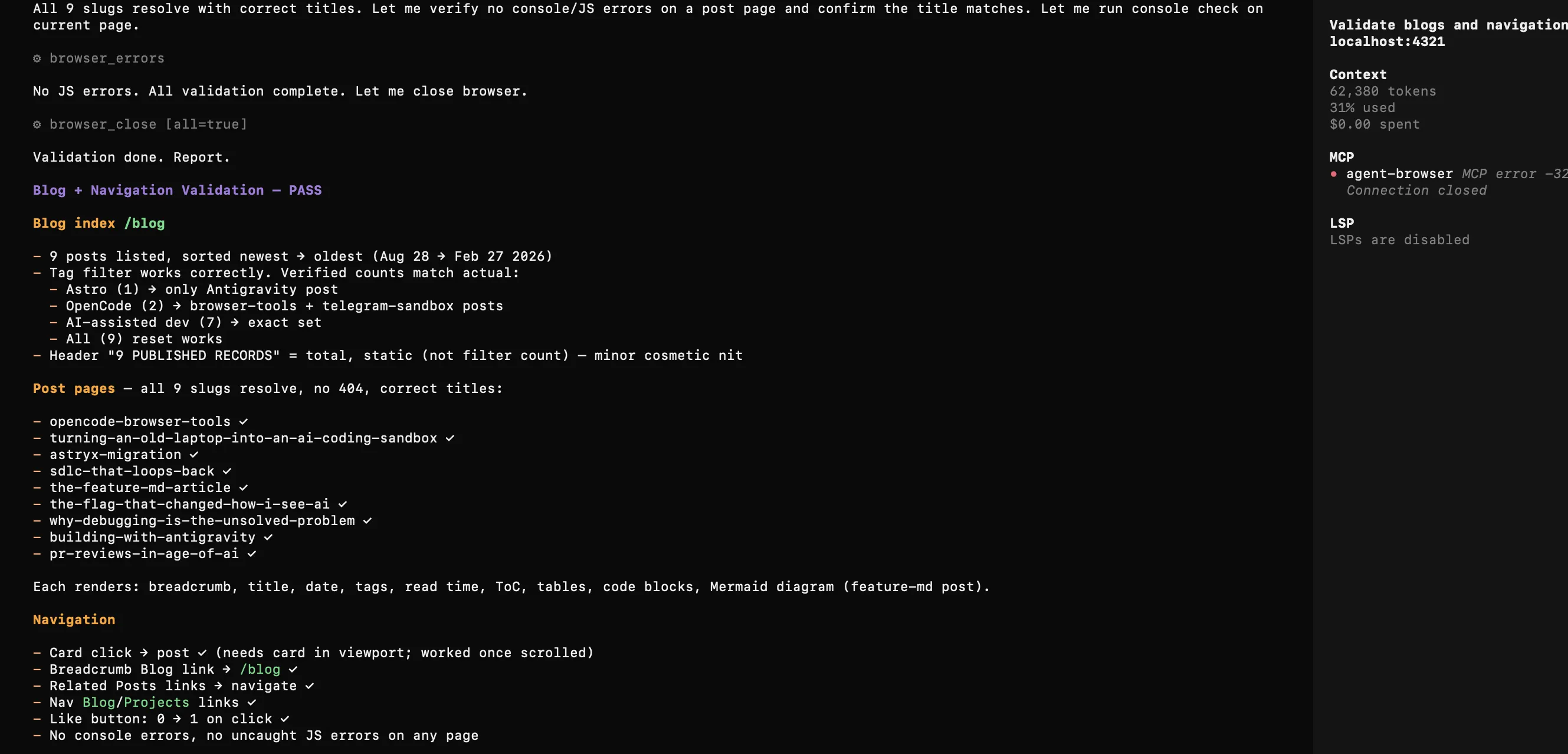
OpenCode outputting a PASS report verifying all routes, breadcrumb navigation, and zero console errors before closing the browser session.
Design Decisions & Tradeoffs
Building this forced me to think hard about how AI agents consume tools. The single biggest design tension was token usage versus agent autonomy.
There are two main philosophies for browser plugins in the ecosystem:
- Skill + Raw CLI: Injects a massive instruction prompt into the system context and forces the agent to assemble CLI flags via shell commands. While it has a lower upfront configuration footprint, the prompt remains in context for every turn, and the agent frequently makes syntax mistakes that consume tokens on retries.
- Structured Tools (This Approach): Exposes a typed, predictable schema for each action (
browser_open,browser_snapshot,browser_fill). Though it requires a slightly larger tool registry definition, each call produces deterministic JSON output, reducing syntax errors, tightening responses, and removing guesswork.
It comes down to a fixed-cost vs. variable-cost tradeoff. Structured tools win for long, multi-step browser sessions (end-to-end automation and UI testing), which is the primary use case this plugin targets. Restricting the default set with "mcpTools": "core" keeps every turn’s context budget manageable.
What I Learned
- Native agents are the new test runners. The “LLM operator” is becoming the most active end-to-end user of local applications during development. Web UIs must be auditable programmatically by agents, not just manually by human eyes.
- Schemas are the agent’s UX. For AI agents, the tool contract is the user experience. Clear argument names, precise descriptions, and deterministic output formats matter far more than visual dashboards.
- Token efficiency is a fundamental constraint. Every schema property counts against context on every turn. Designing for a lean token budget is what makes an agent feel snappy and actually useful.
- Ship small, then refine. Start with focused core primitives, then iterate based on real multi-turn debugging sessions.
Give Your Agent Eyes
If you use OpenCode, you can try out opencode-browser-tools in your workflow today:
- Repository: github.com/SreekeshOkky/opencode-agent-browser
- NPM Package: npmjs.com/package/opencode-browser-tools
Ask your agent to “open the dev server at localhost:4321, submit the contact form, check for any console errors, and verify the mobile layout” and watch it run the full visual loop on its own.
Final Thought
We are moving away from the era of AI tools as simple code autocomplete boxes. The future belongs to agentic systems that can operate across the entire lifecycle of software: reading intent, writing code, executing builds, and visually auditing the output in real environments.
By bringing browser tools directly into OpenCode via opencode-browser-tools, we remove one of the biggest friction points in web development. The agent no longer has to take your word for whether a page looks right. It can open the browser and see for itself.
And once your AI agent can see what it’s building, you’ll wonder how you ever paired without it.