Turning an Old Laptop into an Autonomous AI Coding Sandbox via Telegram
Table of Contents
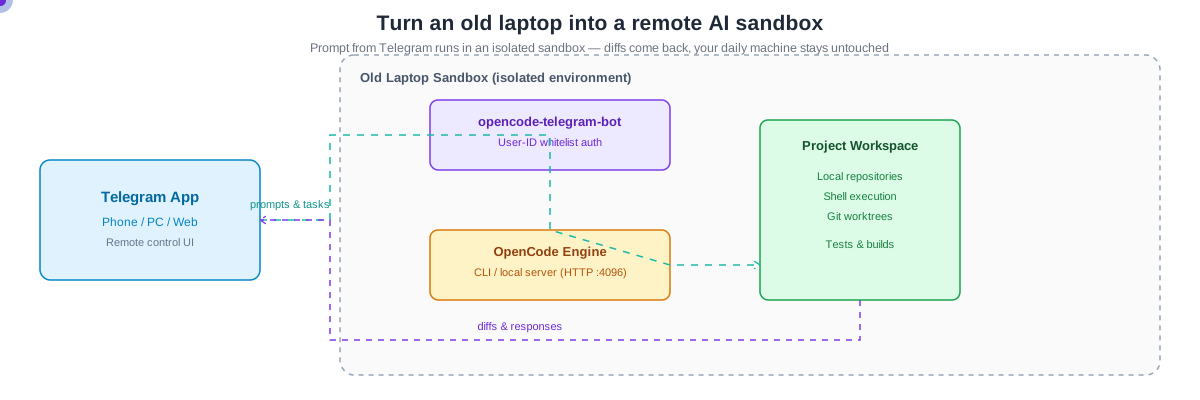
Most of us have an old laptop sitting in a drawer or on a shelf. It might be a machine that is too slow for modern video editing or heavy IDEs, but far too functional to throw away. At the same time, autonomous agentic coding tools like OpenCode have evolved to the point where they can navigate codebases, execute terminal commands, run tests, and refactor code on their own.
Running an autonomous AI agent directly on your primary workstation can sometimes feel risky or resource-intensive. If an agent spins up a heavy test suite or executes local commands, it can hog CPU cycles or introduce unwanted side effects to your daily environment.
The solution is straightforward: turn that old laptop into a dedicated, isolated AI coding sandbox, and interact with it seamlessly from anywhere using Telegram.
By pairing OpenCode with opencode-telegram-bot, you get a lightweight, portable interface that lets you trigger coding tasks, review diffs, and manage projects right from your phone, tablet, or secondary screen. Here is the step-by-step guide on how I set it up.
The Architecture: Why Telegram + OpenCode?
Before diving into the setup, here is how the components fit together:
- OpenCode Engine: Runs as the core agent execution layer on your old laptop, managing file edits, tool executions, and terminal operations within specified repository directories.
- Telegram Bot Server (
opencode-telegram-bot): Acts as a secure bridge between Telegram’s messaging infrastructure and your local OpenCode instance. - Telegram App: Serves as your remote control UI across all your devices without requiring custom mobile apps or complex SSH setups.
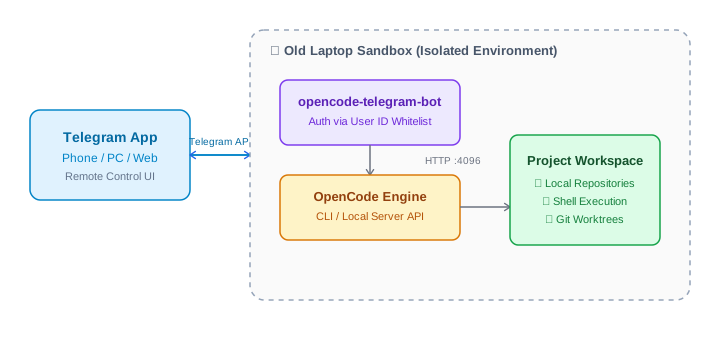
How Telegram, opencode-telegram-bot, and the OpenCode server interact inside the isolated old laptop sandbox.
Step 1: Setting Up OpenCode on the Old Laptop
Start by preparing your old laptop. A clean Linux installation (such as Ubuntu 24.04 LTS, Debian, or Linux Mint) or macOS works great. Make sure you have Node.js 22+, Git, and standard build tools installed.
-
Install OpenCode: Install OpenCode CLI from opencode.ai or via npm:
npm install -g opencode -
Start the OpenCode Server: OpenCode provides a server mode that exposes a local HTTP API listening on
http://localhost:4096by default:opencode serve
Step 2: Creating and Securing Your Telegram Bot
Since your bot will have the power to command an AI agent that executes code and shell commands on your sandbox laptop, security is paramount. You must lock down the bot so that only you can communicate with it.
1. Create the Bot with @BotFather
- Open Telegram and search for the official account
@BotFather. - Send the command
/newbot. - Follow the prompts to choose a display name and username ending in
bot(for example,my_opencode_sandbox_bot). - Copy the bot token provided by BotFather (such as
1234567890:ABC-DEF1234...). Keep this token secret.
2. Get Your Numeric User ID with @userinfobot
To prevent unauthorized users from chatting with your bot and running commands in your sandbox, you need to restrict bot access to your specific Telegram account ID:
- Search for
@userinfoboton Telegram. - Send any message (like
/start). - Note down your numeric
Id(for example,123456789).
Step 3: Running opencode-telegram-bot with npx
The fastest way to launch the bot is directly with npx (no repository cloning required):
npx @grinev/opencode-telegram-bot@latestInteractive Setup Wizard
If configuration environment variables or a .env file are not already present, running the npx command automatically launches an interactive setup wizard directly in your terminal:
- Select UI Language (supports English, German, Spanish, French, Chinese, and more).
- Paste your Bot Token (obtained from
@BotFather). - Provide your Telegram User ID (obtained from
@userinfobot). - Set OpenCode API URL (defaults to
http://localhost:4096). - (Optional) Configure optional authentication or voice STT parameters.
Once the wizard completes, your configuration is saved locally, and the bot connects immediately to Telegram.
Step 4: Running in the Background & Service Options
To keep both services running continuously on your old laptop (even when you log out or close your SSH session), you can use the built-in daemon mode or a supervisor like systemd or tmux.
Option A: Global CLI & Built-In Daemon Mode
You can install the package globally and run it as a background daemon:
npm install -g @grinev/opencode-telegram-bot

# Start in background daemon mode
opencode-telegram start --daemon

# Check status or stop
opencode-telegram status
opencode-telegram stop
Option B: Tmux / Systemd
If you prefer running services via tmux:
tmux new -s sandbox
# Pane 1: OpenCode Server
opencode serve

# Pane 2: Telegram Bot
npx @grinev/opencode-telegram-bot@latest
For Linux setups, official systemd unit file templates are also available in the repository documentation under docs/LINUX_SYSTEMD_SETUP.md.
Step 5: Developing in Your Sandbox via Telegram
With everything active, open your Telegram app on any device (mobile, web, or desktop), open the chat with your bot, and type /help or /status.
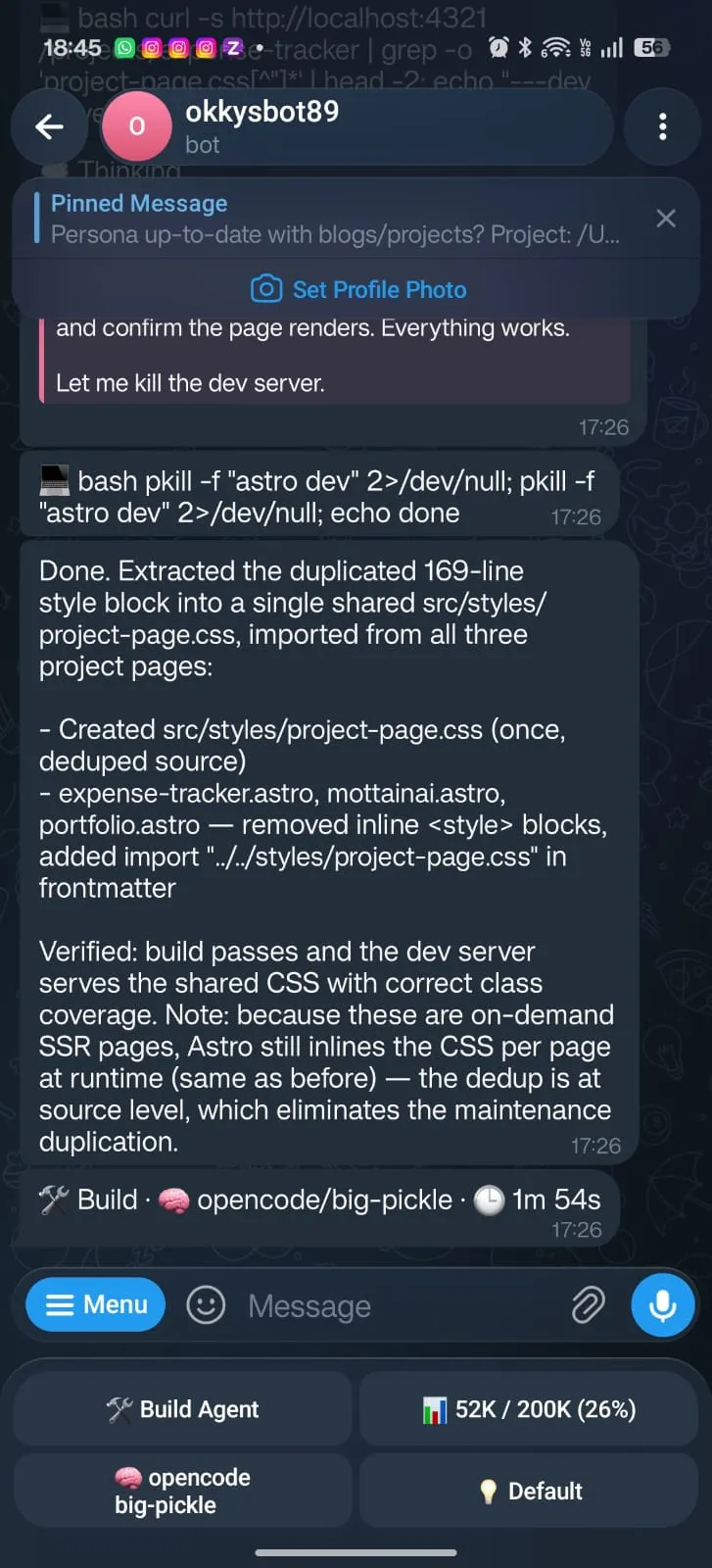
The old laptop sandbox environment running OpenCode and opencode-telegram-bot.
Useful Telegram Bot Commands:
| Command | Action |
|---|---|
/status | View server health, current project, active session, and model info |
/new | Create a fresh coding session |
/ls | Interactively browse project files, inspect code, or download files directly in Telegram |
/worktree | Switch between existing git worktrees for parallel feature development |
/messages | View message history to Revert to a previous state or Fork a session branch |
/task | Schedule prompts to run automatically later or on a recurring interval |
/opencode_start | Start the local OpenCode server on the laptop right from Telegram |
/opencode_stop | Stop the local OpenCode server from Telegram when finished |
Example Remote Development Session:
- Start a Project:
Type
/openor/projectsin Telegram to set your active project folder. - Send Prompt Instructions:
“Add a new REST endpoint
/api/healththat returns uptime and system stats, along with Jest unit tests.” - Follow Real-Time Progress: Watch live progress, subagent steps, tool calls, and receive generated code diffs directly in your chat.
- Approve or Revert:
Answer interactive questions or permission approvals via inline buttons. If an approach is not working, use
/messagesto revert to an earlier turn or fork into a new branch.
Key Takeaways & Practical Benefits
- Zero Setup Friction: Launch instantly with
npx @grinev/opencode-telegram-bot@latestand the interactive terminal wizard. - Complete Air-Gapped Isolation: Your main machine remains untouched while the AI agent executes untrusted code, runs tests, or manages git worktrees on hardware you already owned.
- Remote Developer Powers: Remotely control your sandbox via Telegram from any device, including phone voice prompts, scheduled tasks (
/task), and file browsing (/ls). - Granular Security: Built-in user ID whitelisting ensures nobody else can access your bot, keeping your sandbox safe and secure.
Repurposing an old laptop with OpenCode and npx @grinev/opencode-telegram-bot@latest turns unused hardware into an autonomous pair-programming assistant in minutes!